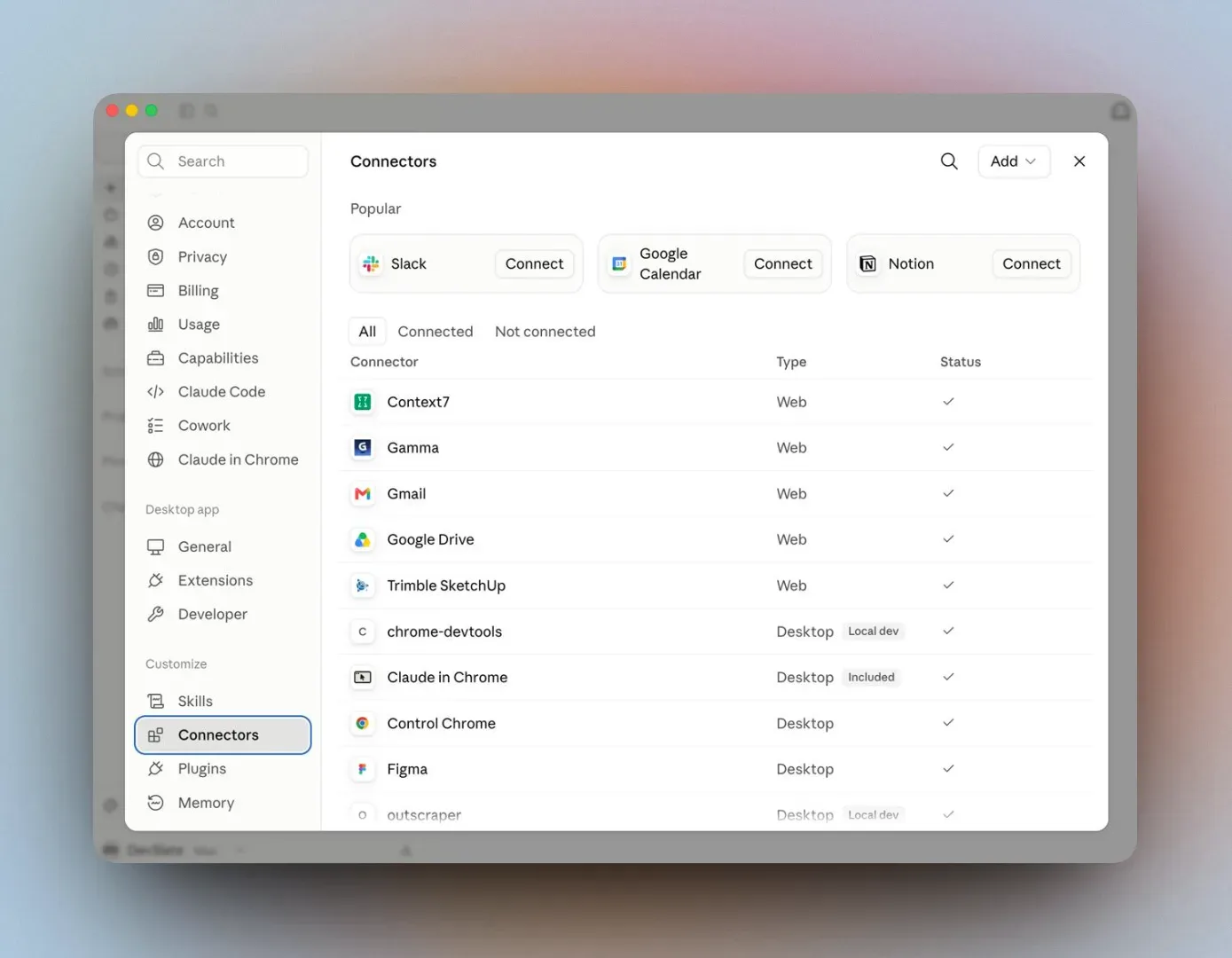
Claude Connectors are integrations that let Claude connect to the other applications and data sources you use. Put simply, instead of copying information into Claude yourself, Claude can take it from a connected system and, where it is permitted, act there.
For example, when connected to:
- Gmail – Claude can search your email and use what it finds;
- Google Drive – find and analyse documents;
- Google Calendar – see calendar information;
- Slack – search conversations and, in some cases, act;
- GitHub – read repository information, work with issues and so on;
- Microsoft 365, Notion, Linear, Asana and many other services.
There is an important difference between ready-made Connectors and Custom Connectors. You find the ready-made ones in the Claude Connectors directory. With a Custom Connector you can connect your own internal system, or practically any external one.
How to connect a Connector
- Open Claude and select Customize.
- Open the Connectors section.
- Press + or Add.
- Choose the system you want from the directory — for example Google Drive, Gmail, Slack or Asana.
- Review what information the Connector will be able to reach and what actions it can take.
- Press Connect or Install.
- Sign in to the system you chose and give the permissions it needs.
- Back in Claude, check that the Connector is shown as connected.
If the system you need is not in the directory, you can add a Custom Connector. For that you need the MCP server address of the system, and, depending on the system, its sign-in details.
You manage connected systems under Customize → Connectors. There you can review what they can do, connect them again, or disconnect a Connector you no longer need.
What can you do in practice?
Below are a few simple use cases you can try immediately.
Sign in to read and copy this prompt.
Sign inClaude can find the meeting notes, pick out the decisions made and prepare a list of the agreed actions.
Sign in to read and copy this prompt.
Sign inWith Google Drive connected, Claude can review the files in a folder, group them by topic and propose a clearer structure.
Sign in to read and copy this prompt.
Sign inWith Gmail connected, Claude can group new email by importance and show which messages to answer first.
Official sources
This guide follows Anthropic’s own documentation. It carries the newest and fullest version of everything below: